
What's new in Memor More 1.11: flashcards from photos, Anki export and study options
Memor More 1.11 turns photos and scanned pages into AI flashcards, exports decks to Anki or CSV, adds study options, bulk card editing and speech settings.
Memor More 1.11 changes how you study, how you make cards and how you manage your decks. In study sessions you can now choose which cards to review, shuffle them or start from the back side, and have cards read aloud with a voice and speed you pick for each language. AI can make flashcards from a photo, a scan or a file. To keep a growing library in order, you can move, copy or reset many cards at once, export any deck to Anki (.apkg) or CSV, and set a daily goal of any size. Update from the App Store; the same update covers iPhone, iPad and Mac.
Version 1.11.1 reached the App Store on 7 November 2026. Everything below was checked against that version on 9 November 2026. The screenshots show the iPhone app with a sample library.
What's new at a glance
| Stage | Feature | Where to find it | Good for |
|---|---|---|---|
| Studying | Study options | Deck menu → Study Modes (Mac: Study Options…) | Reverse recall, revising favorites, fixing weak cards |
| Studying | Speech settings | Settings → Speech | Listening practice, slower or faster audio |
| Making cards | Flashcards from photos and scans | New deck → AI Generation → Photo or File | Textbook pages, handouts, handwritten notes |
| Managing your learning | Bulk editing | Deck menu → Select Cards | Splitting a big deck, cleaning up after an import |
| Managing your learning | Export to Anki or CSV | Deck menu → Export Cards… | Sharing with Anki users, editing in a spreadsheet, keeping a copy |
| Managing your learning | Any daily goal | Settings → Daily Goal | A target that fits your week |
The sections follow the same order: studying first, then making cards, then managing your decks and your daily routine.
Choose which cards to study
The Study button still starts the scheduled review. For anything else, open Study Modes from the deck menu (on the Mac, Study Options…). With Classic selected, a Flashcard Options section lets you choose the cards for one session:
| Pool | What it contains | Changes the schedule? |
|---|---|---|
| Due Today | Cards due by the end of today | Yes |
| New | Cards never answered yet, oldest first | Yes |
| All Cards | Every card in the deck | No |
| Favorites | Cards you marked with the heart | No |
| Keeps slipping | Cards you keep forgetting | No |
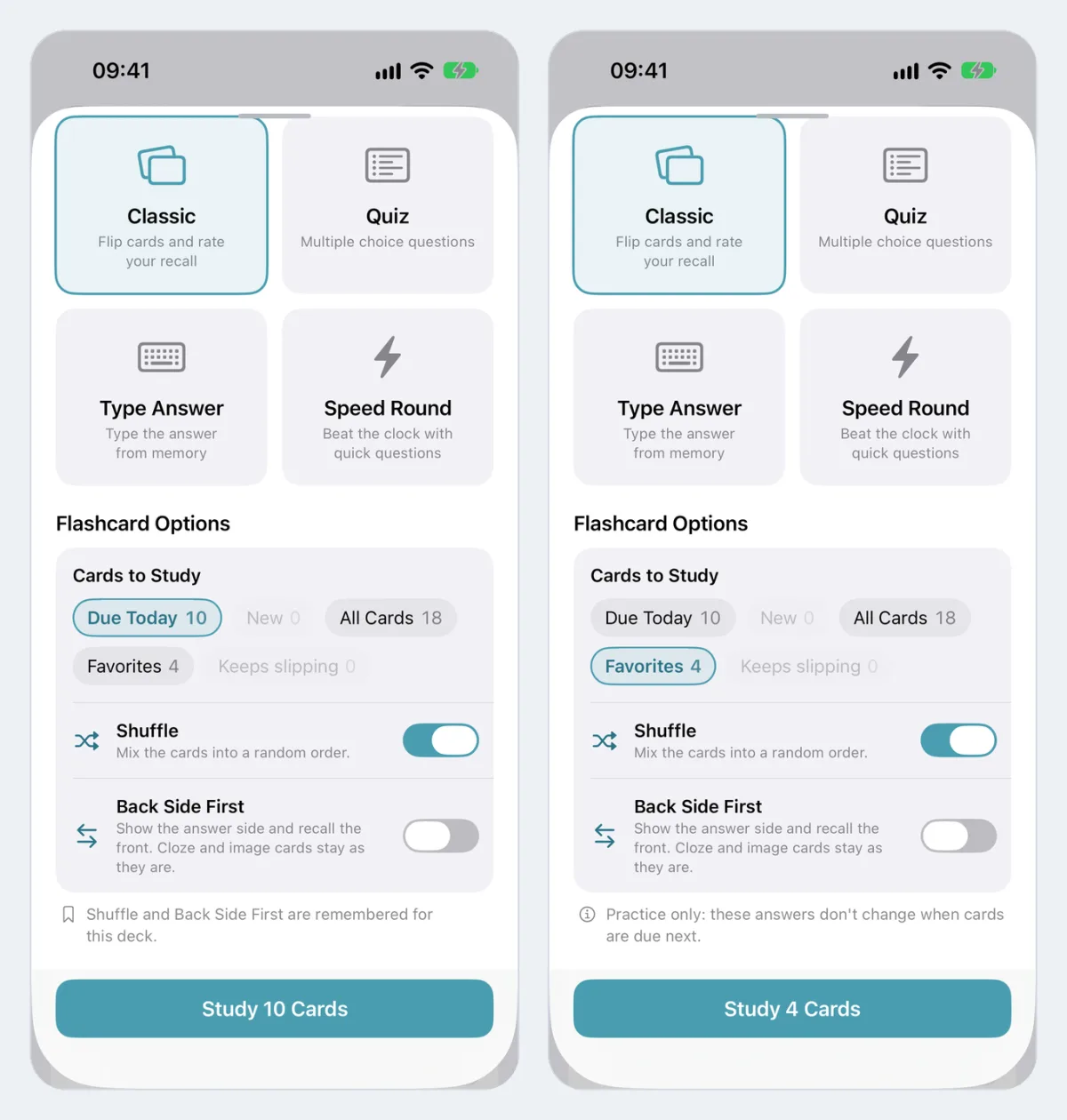
Flashcard Options inside Study Modes. Picking Favorites (right) turns the session into practice that leaves the schedule alone.
The last three are practice. Answering them early or again doesn't push their next review around, so a quick run through your favorites before a test won't upset the FSRS schedule. The sheet says so whenever one of them is picked.
Two switches sit below the pools:
- Shuffle mixes the cards into a random order.
- Back Side First shows the answer side and asks you to recall the front. Cloze and image cards have no other side to ask with, so they stay as they are.
Both switches are remembered for each deck. The pool always goes back to Due Today, so the next session you start is a normal review. These options apply to Classic flashcard sessions; Quiz, Type Answer and Speed Round start the way they did before.
Speech: a voice and speed for every language
Cards could already be read aloud. Settings now has a Speech screen that controls how:
- Read Cards Aloud speaks each question when it appears. The speaker button in a study session switches this too.
- Read Answers Too speaks the answer when you flip a card.
- Speaking Rate has Slow, Normal and Fast.
- Voices lists the languages your decks use, then other installed languages, with a voice picker and a sample for each. A sample reads a line from your own cards, so you hear what a session will sound like.
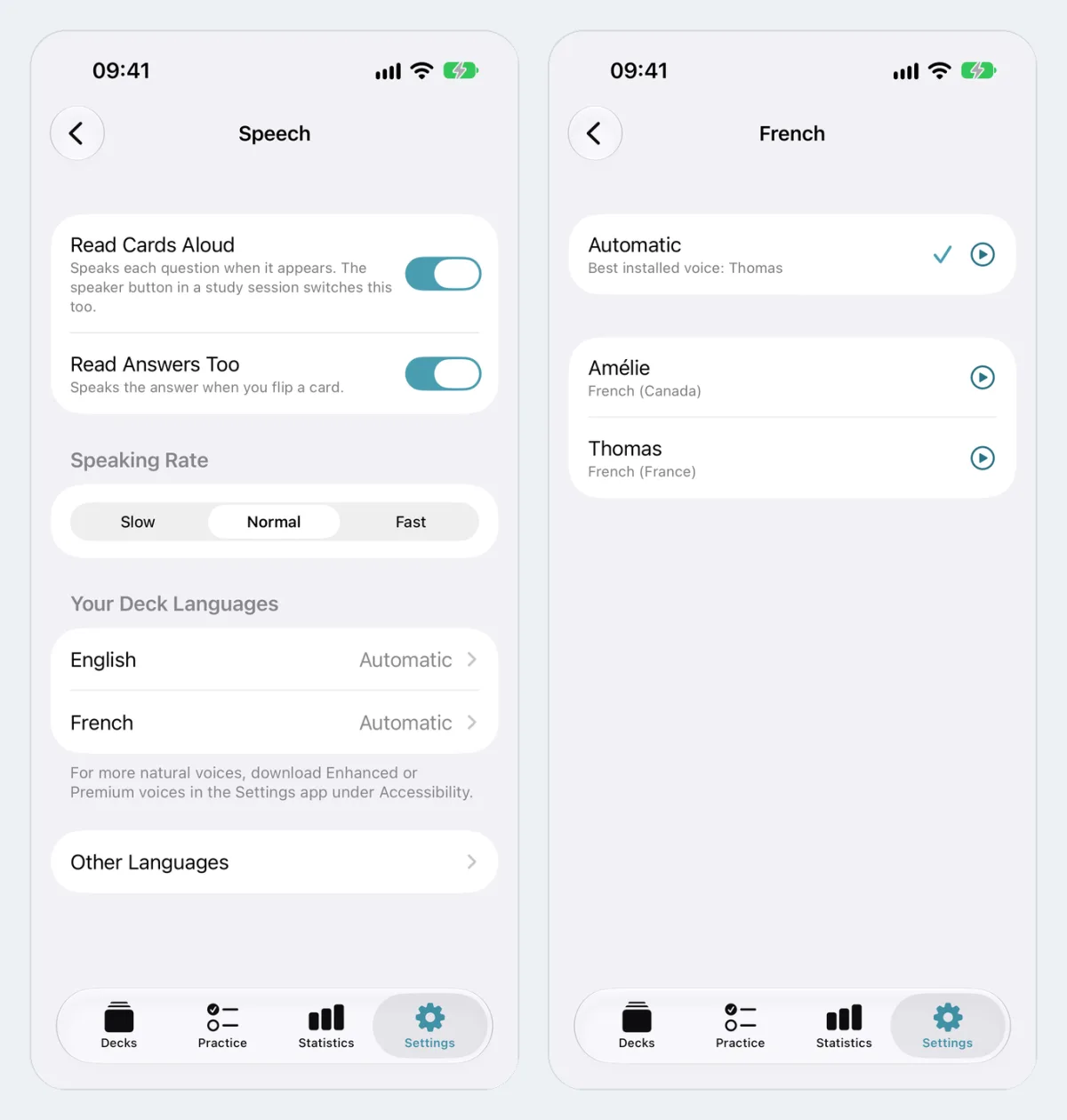
Speech settings (left) and the voice picker for French (right).
Automatic picks the best voice installed on your device. For more natural voices, download Enhanced or Premium voices in the Settings app under Accessibility (System Settings on the Mac); they then show up in the picker.
Make flashcards from photos of your notes
AI generation used to take a description or one file. In 1.11 the second tab is called Photo or File, and it has three ways in:
- Scan Pages uses the iPhone's document scanner on notes, handouts or book pages. This one is iPhone and iPad only.
- Photo Library takes up to 10 pictures, read in the order you pick them.
- Files takes a PDF, a Word document, a text file or an image.
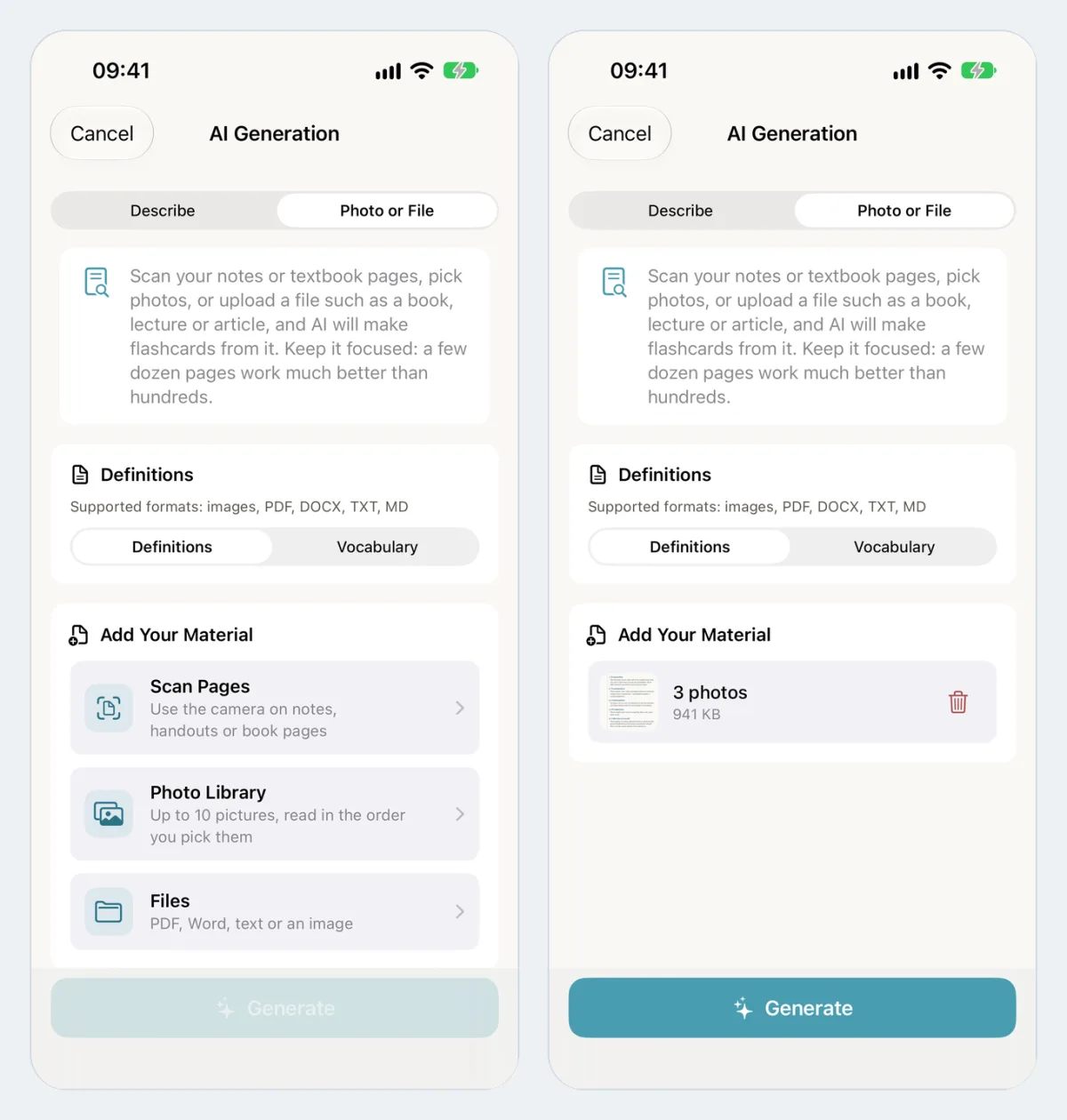
The Photo or File tab. Left: the three ways to add material. Right: three photos of study notes, ready to generate.
Several photos or scanned pages become one PDF, one page per picture, so the AI reads them as a single document. Pictures are scaled down to the size text recognition needs, which keeps a phone photo well under the 20 MB upload limit. If you pick more than 10, the app keeps the first 10 and tells you so. Photos from the library are converted for you, so iPhone HEIC pictures work this way even though a HEIC file picked from Files is still refused.
Before you generate, choose what kind of cards you want. Definitions makes question-and-answer cards about the content. Vocabulary makes word cards and asks for the language you are learning, which suits a photographed word list from a textbook.
Keep the material focused. The app's own advice is that a few dozen pages work much better than hundreds, and one chapter or one lecture per deck gives tighter cards than a whole book.
Treat the result as a draft, too. You can remove or undo generated cards before you save them, and every card stays editable afterwards. How to turn notes into flashcards shows the review pass on a real lecture page, and the AI flashcard generator page lists formats, limits and how your files are handled.
Each generation, from a photo or otherwise, uses one of your AI generations. Pricing shows how many come with Free and Premium.
Edit many cards at once
Select Cards turns a deck's list into a checklist. Tick cards one by one or use Select All, then act on all of them together:
- Move to another deck. Moved cards keep their progress and favorites.
- Copy to another deck. Copies start as new cards and the originals stay put.
- Favorite or remove from Favorites.
- Reset progress, so they start again as new cards.
- Delete, with a confirmation, because progress goes with them.
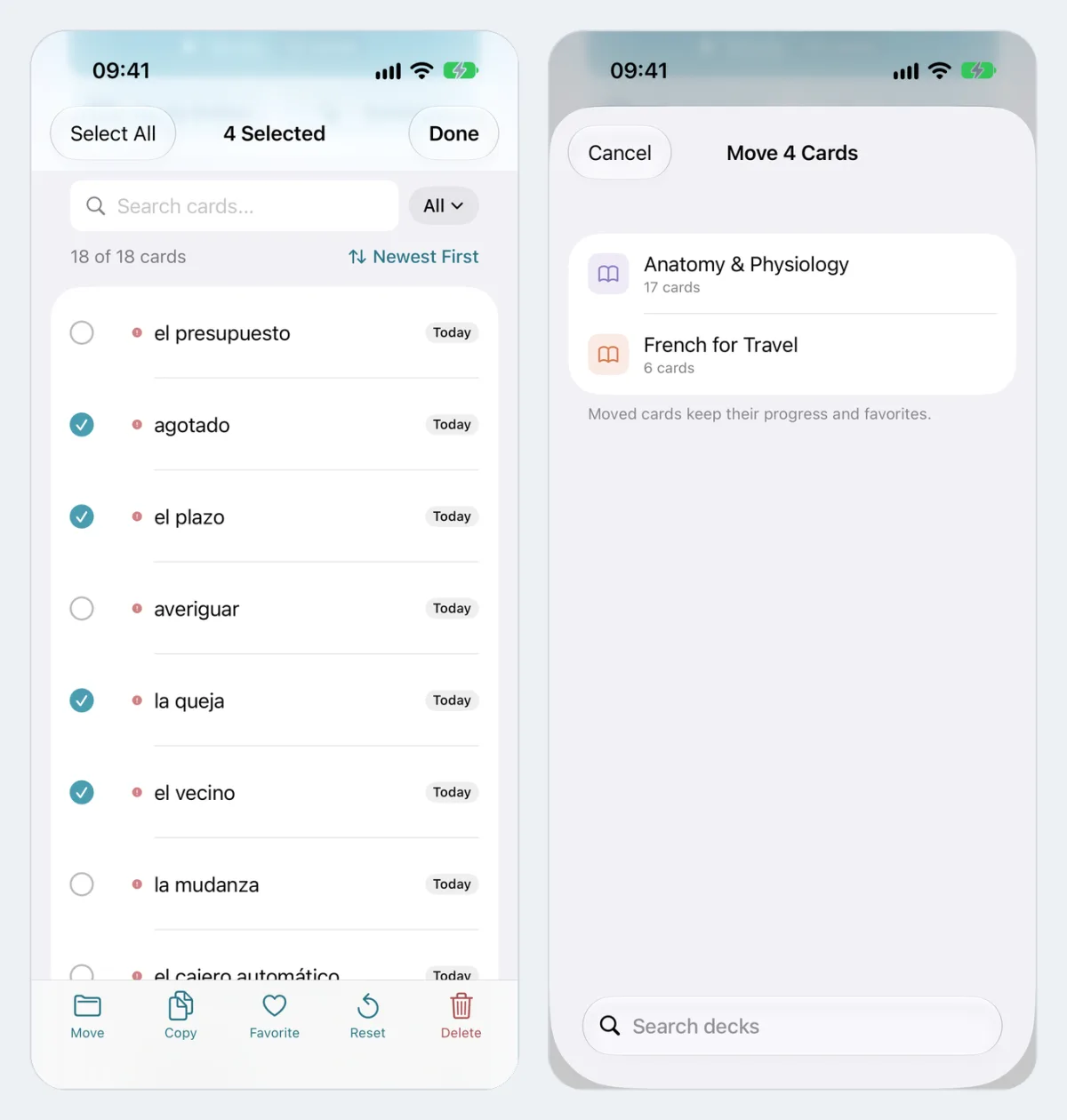
Select Cards, then Move: four Spanish cards on their way to another deck with their progress.
Cloze and Image Occlusion notes always travel whole: moving one blank of a cloze sentence moves the whole sentence and all its cards. A reversed pair also moves together when both cards are selected.
This is the feature for tidy-up jobs that used to take one card at a time: splitting a 400-card vocabulary deck by topic, pulling the cards about one chapter into an exam deck, or resetting a block of cards you learned wrong and rewrote. On the Mac, the same actions work on the rows you select in the deck table.
Export a deck to Anki or a spreadsheet
Until now, cards could come into Memor More from Anki, CSV, text and JSON, but a single deck couldn't go back out. In 1.11 every deck has Export Cards… in its menu, with two formats:
- Spreadsheet (CSV). Front and back as plain text, with a
Front,Backheader. It opens in Numbers, Excel and Google Sheets, and it imports back into Memor More. - Anki Package (.apkg). Keeps formatting, pictures, recordings and cloze cards. A reversed pair becomes one "Basic (and reversed card)" note, so Anki makes both directions itself.
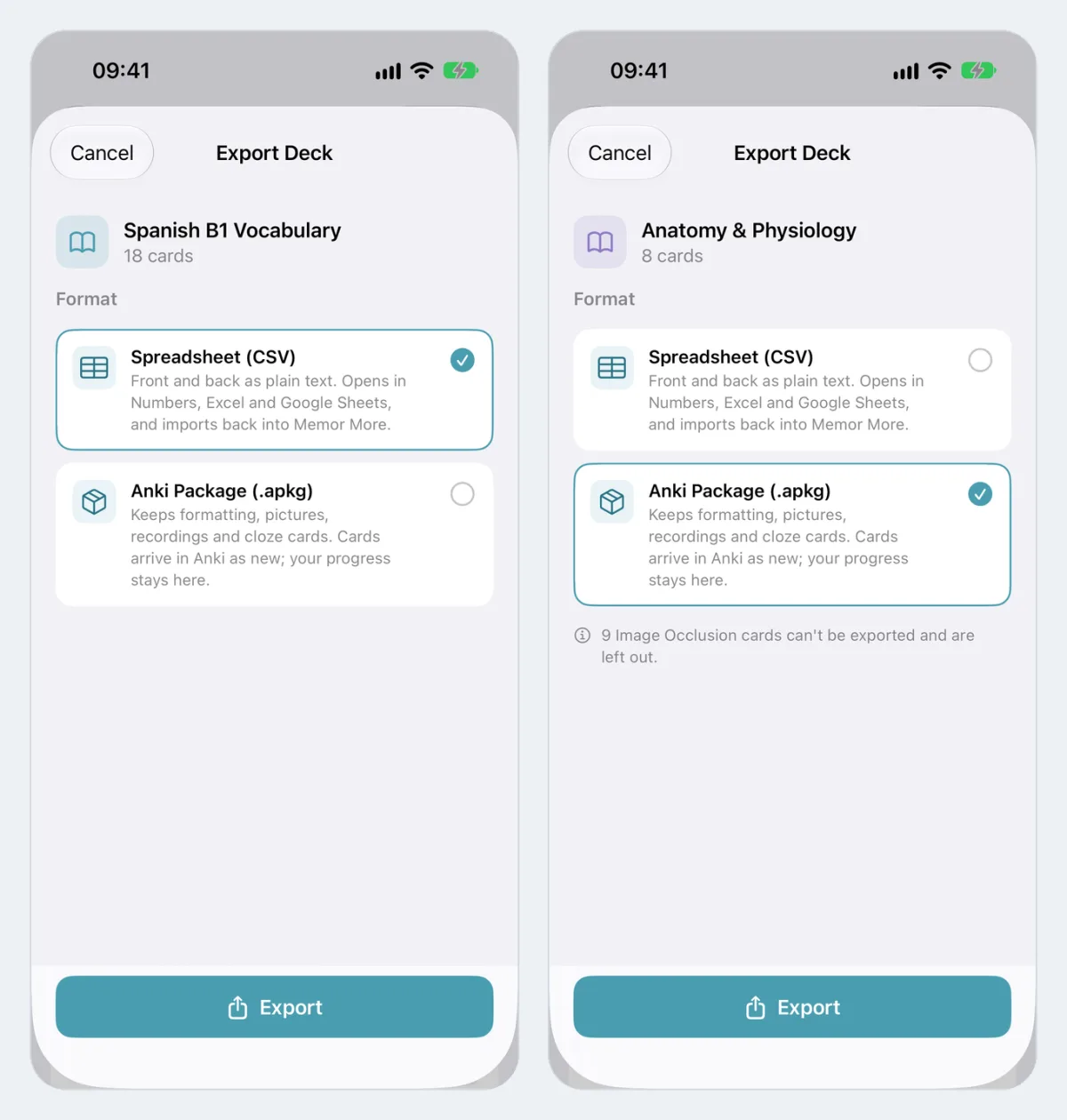
Export Deck. Right: a deck with image occlusion cards, which the sheet counts and leaves out.
Some limits to know before you rely on it:
- Progress stays in Memor More. Cards arrive in Anki as new cards, and a CSV holds no scheduling at all.
- Image Occlusion and Drawing cards are left out of both formats. The export sheet says how many will be skipped.
- Pictures are converted for Anki. HEIC images become JPEG, so they also show in Anki on Windows and in AnkiDroid.
- A later export can update the same notes. Each note keeps a stable ID across exports, so when you import a newer export, Anki can match it to the notes it already has instead of adding duplicates. What it does with a match depends on Anki's import settings.
If you are weighing the two apps, our Anki vs Memor More comparison and the Anki alternative for iPhone page cover what each does better. If getting locked in was what held you back, you can now take a deck with you.
A daily goal of any size and a new Settings screen
The daily goal used to be a choice of preset sizes. Now you can enter any number from 1 to 9,999 cards, as well as picking a suggested size. If 20 is too few on a quiet day and 50 too many on a busy one, set 35.
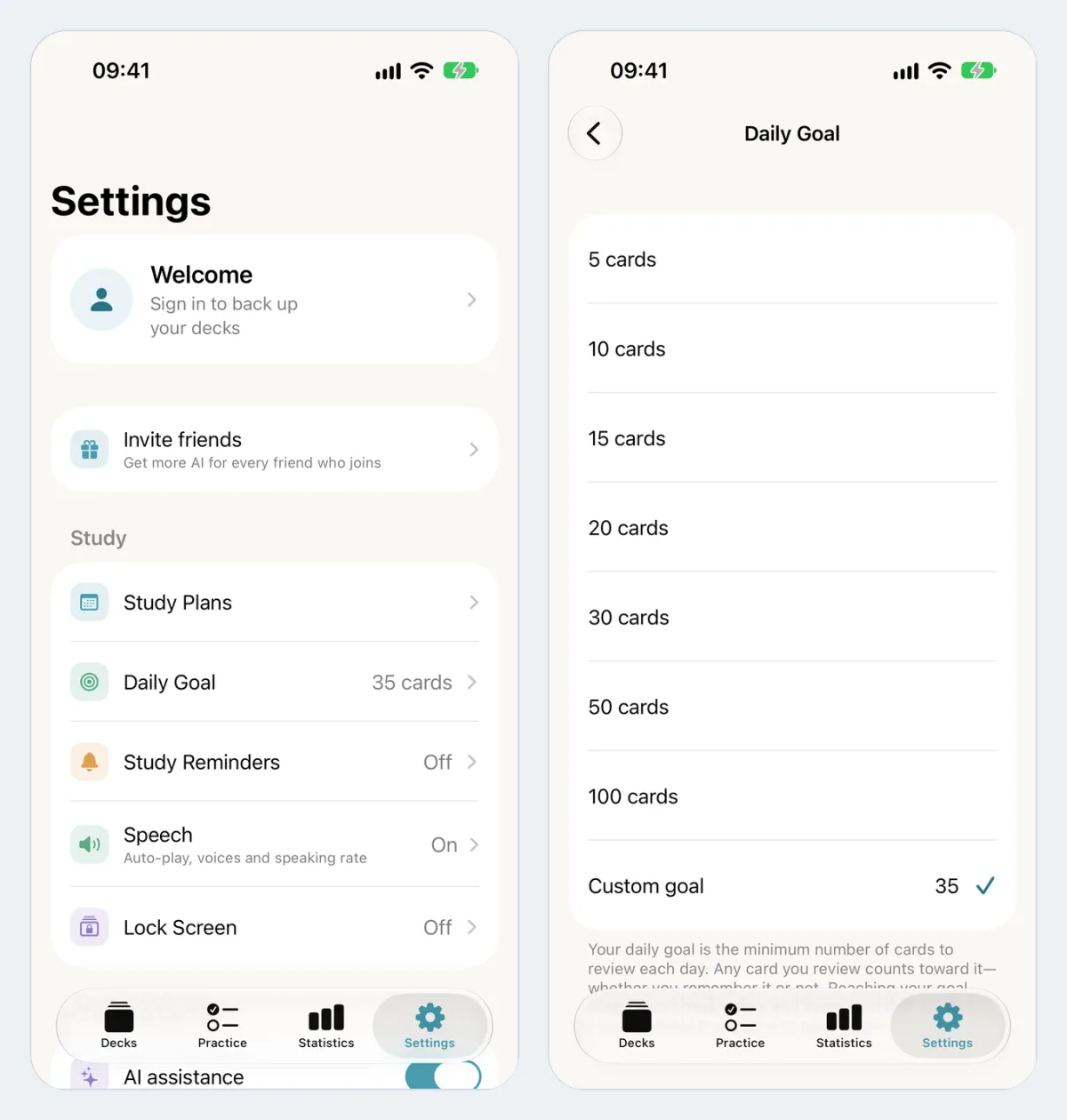
The new Settings layout shows each value in its row (left). Daily Goal now takes a custom number (right).
Settings itself is regrouped. A profile card at the top shows your plan and AI allowance once you're signed in, and opens a new Account screen with Sign in with Apple, subscription management, Restore Purchases and a Support ID you can copy when you write to us. Below it, settings are grouped into Study, Creating Cards, General, Sync & Data and About, and each row shows its current value.
Version 1.11.0, a few days earlier, added Lock Screen widgets for your streak, daily goal, due cards and weekly activity, a list of your mastered cards, a next review date on every card, and six new interface languages: Turkish, Polish, Vietnamese, Dutch, Ukrainian and Hebrew. 1.11.1 also fixed translated text that didn't fit and right-to-left layouts.
How to use the new features in your learning
Each of these features is small. Combined, they fit a few common ways of studying.
Language learners: practise recall in both directions
- Photograph the vocabulary page of your textbook and generate in Vocabulary mode, with the language you're learning as the target. The next update adds a YouTube link as a source, so a vlog's captions can feed the same mode.
- Review the deck normally for a week, so the foreign word cues the meaning.
- Then turn on Back Side First for that deck and start an All Cards session. Now the meaning cues the word, which is the harder direction and the one you need for speaking and writing.
- In Speech, pick a natural voice for the language and set the rate to Slow while the words are new. Turn on Read Answers Too if your answers are in the language you're learning.
Which direction to practise first depends on your level. A 2021 study of Japanese learners of English found that lower-proficiency learners gained more from L2-to-L1 practice and higher-proficiency learners from L1-to-L2 (Terai, Yamashita and Pasich, Studies in Second Language Acquisition). It was a small study of 28 people, but it supports starting with recognition and adding the reverse direction as you improve. The spaced repetition vocabulary schedule has a daily routine to go with it, and the free Spanish B1 emotions and relationships deck is a ready-made deck to try Back Side First on.
Exam revision: from handouts to a working deck
- After a lecture, scan the handout with Scan Pages, up to 10 pages per generation, and generate Definitions cards.
- Read the draft against the handout, delete the weak cards and fix the rest. Use Select Cards → Move to file them into one deck per module.
- Study the scheduled review every day. In the week before the exam, add short Keeps slipping sessions to work on the cards that keep failing, without disturbing their schedule.
- The night before, run Favorites or All Cards with Shuffle on, so you aren't leaning on the order the cards were written in.
Keep the daily review as the main habit. In Kornell's 2009 flashcard experiments, spacing beat cramming for 90% of participants, yet most of them believed the opposite after their first session. Spaced repetition vs massed practice goes into the research, and flashcards for exam revision has a revision plan. If you want something to practise on, the free biology deck on plants and vertebrates works well with Shuffle.
Teachers and tutors: one deck, several formats
- Make a class deck from a worksheet. Scan it, generate, edit, then share the deck with your class.
- Give Anki users the same cards. Export the deck as an .apkg for students who already use Anki. If you fix cards later, export again and students re-import it; Anki recognises the notes it already has.
- Edit in a spreadsheet. Export a CSV, correct spelling or add rows in Google Sheets with a colleague, and import it back.
- Make a differentiated version. Select the core cards, Copy them into a new deck, and share that one with students who need a shorter list. Copies start fresh and the original deck is untouched.
Moving between apps, or keeping a copy
If you are coming from Anki, Memor More already imports .apkg files with cloze and image occlusion notes. Now the route works in both directions, so you can try Memor More with a deck and take it back to Anki if you decide it isn't for you. If you only want a copy of your cards in a file you control, a CSV export of each deck is the simplest one to read. For your whole library, with pictures and review history, use Backup & Restore in Settings instead.
Busy weeks: a goal that matches your time
Set the daily goal to a number you can finish on a busy day, not the one that looks good on a free Sunday. You can always study past it. A Lock Screen widget with your due cards puts the number in front of you without opening the app.
What 1.11 doesn't do yet
- Back Side First doesn't apply to cloze and image cards, and the study options are for Classic sessions only.
- Scanning with the camera isn't available on the Mac. Use photos or a PDF there.
- Generating from photos needs a connection and uses your AI allowance. Studying, editing and exporting work offline.
- Export covers one deck at a time, and Image Occlusion and Drawing cards can't be exported.
- Review history doesn't travel in either export format.
Questions about 1.11
Does studying all cards or my favorites change when cards are due?
No. Only the Due Today and New pools update the spaced-repetition schedule. All Cards, Favorites and Keeps slipping are practice sessions, so answering them early or again doesn't move their next review.
How many photos can I turn into flashcards at once?
Up to 10 photos or scanned pages per generation. Several pictures are combined into one PDF in the order you picked them, and pages past the tenth are left out. A single upload can be up to 20 MB.
Can I make flashcards from a photo on the Mac?
Yes. On the Mac you can choose photos or a file. Scanning pages with the camera is only on iPhone and iPad.
What happens to a card's progress when I move it to another deck?
Moved cards keep their progress and favorites. Copied cards start as new cards in the other deck, and the originals stay where they were.
Can I export my Memor More flashcards to Anki?
Yes. Since version 1.11, open a deck, choose Export Cards and pick Anki Package (.apkg). The package keeps formatting, pictures, recordings and cloze cards. Image Occlusion and Drawing cards can't be exported and are left out, and the app tells you how many before you export.
Does exporting a deck keep my review progress?
No. Cards arrive in Anki as new cards, and a CSV file holds only the front and back text. Your progress stays in Memor More. Exporting does not remove or change anything in the app.
Are the new features free?
Study options, speech settings, bulk editing, export and the new daily goal work on the free plan. Generating cards from photos, scans or files is AI generation, so it uses your AI allowance like any other generation.
Get the update
Update Memor More on the App Store, or download it if you're new. Everything in this post works on the free plan, and AI generation from photos comes with the free plan's allowance. To try the study options straight away, copy a free deck from the public deck library, such as French A1 survival basics, open Study Modes, and run it once with Back Side First.
Further reading
- How to turn notes into flashcards: a worked example of generating and reviewing a deck
- AI flashcard generator: supported files, limits and privacy
- Anki vs Memor More: what each app does better, now that decks can move both ways
- Memor More for Mac: build and clean up decks on the big screen
- Flashcard practice exercises: Quiz, typing and Practice Sets beyond scheduled review
- FSRS vs SM-2: how Memor More decides when each card comes back
Written by
Founder & developer of Memor More. I build iOS and Mac apps and write about the science of memory and learning. @Jerelii on X