
Memor More is now on Mac: build your decks on the big screen, study them on your iPhone
Memor More now has a native Mac app with the full feature set and faster card entry. Build and edit decks on your Mac, then review them on your iPhone.
Memor More now has a native Mac app on the App Store. It is the full app, with the same decks, card types, AI generation, study modes and FSRS schedule you have on iPhone and iPad, synced through iCloud. From now on the Mac version gets updates in step with the iPhone and iPad version.
The Mac app is free from the same App Store listing and needs macOS 15 Sequoia or later.
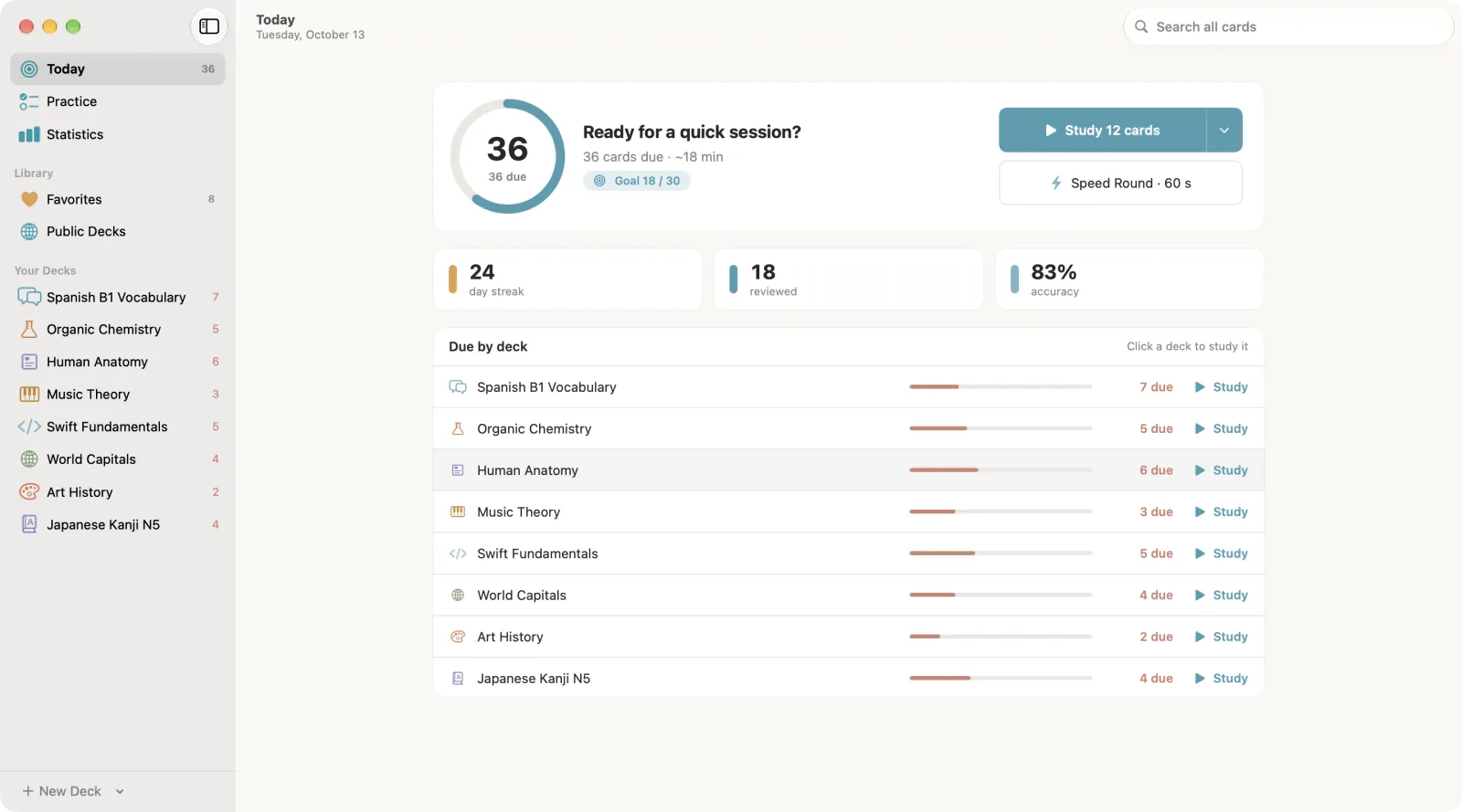
Today on the Mac: what is due across every deck, your goal and streak, and a Study button for each deck. Screenshots in this post show the Mac app with a sample library.
Why a Mac app for flashcards
Writing good cards takes typing, copying from a PDF or lecture slides, and tidying. Reviewing them takes five minutes and a free hand. Those two jobs suit different devices, and most people already own both.
So we spent most of the Mac work on making cards. A laptop keyboard and a large window make building a deck from a chapter much faster than thumb-typing it on a phone. The iPhone stays the device you review on, on the bus, in a queue or between classes.
Adding cards in batches
The card editor on Mac shows the front and back side by side, so there is no flipping between sides while you type. The bigger change is how it handles a run of cards:
- Open a deck and press ⌘N, or click + in the toolbar.
- Tick Add another at the bottom of the sheet. The app remembers it for next time.
- Type the front and the back, then press ⌘↩.
The card is saved, the sheet clears and stays open, and you go straight on to the next one. It keeps the card type you were using, so a run of cloze cards stays cloze. If you'd rather leave Add another unticked, ⇧⌘↩ saves and opens a fresh card just that once. Formatting works the way it does in any Mac text editor: ⌘B, ⌘I and ⌘U, and ⇧⌘C turns the selected words into a cloze blank.
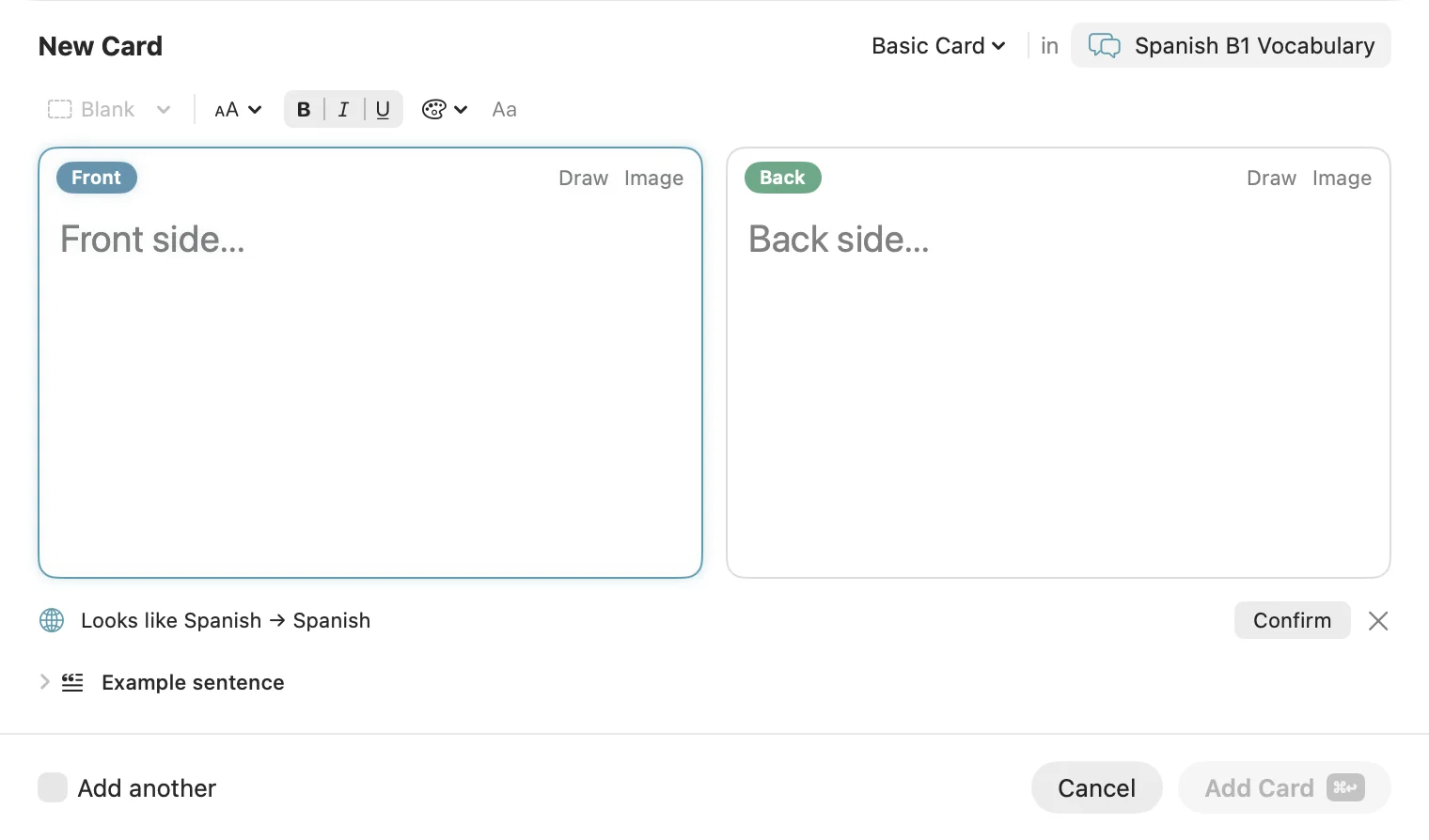
The New Card sheet. With Add another ticked, ⌘↩ saves the card and opens a blank one.
The + menu offers every card type: basic, cloze, image occlusion and drawing. Each side of a card has Image and Draw buttons, so you can drop in a screenshot or sketch a diagram without leaving the sheet. More on the two newer card types is in our guide to cloze and image occlusion flashcards.
When you already have the material
If the content exists somewhere already, you don't need to type it card by card:
- AI generation. Describe what you want to learn or pick a file, choose a topic and the front and back languages, and generate 10, 20, 30 or 50 cards at once. Every generated card stays editable. Our AI flashcard generator page covers supported files, limits and privacy.
- Import. The import button in the deck toolbar takes CSV, plain text, JSON, ZIP and Anki .apkg files. If you are moving from Anki, this comparison explains what comes across and what doesn't.
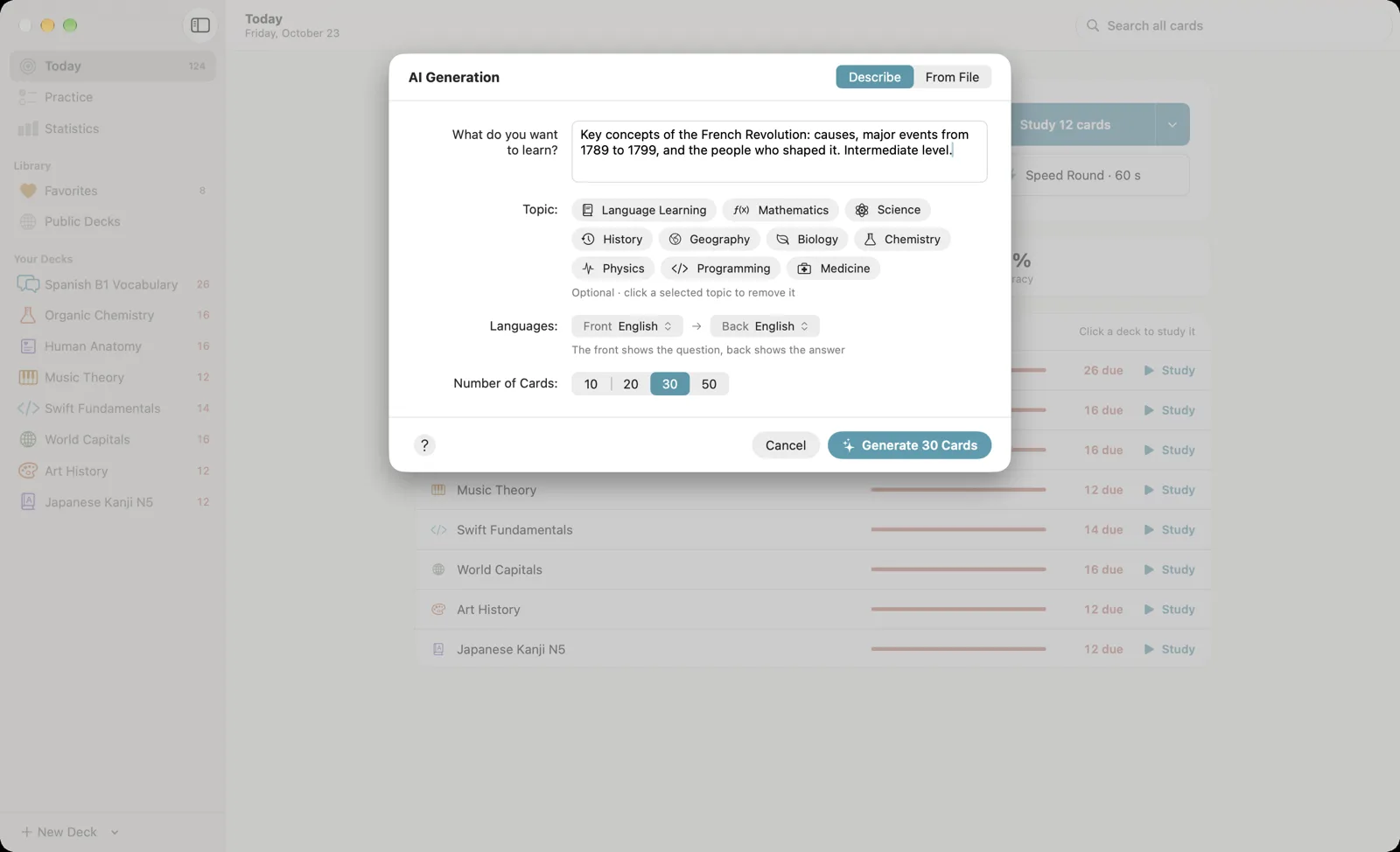
AI generation on Mac. Describe the topic or switch to From File.
Generated cards are a draft. Reading them against the source is still the step that matters most, and a big screen makes it quicker. How to turn notes into flashcards walks through that review pass with a real lecture page.
Editing a deck in one window
A deck on the Mac opens as a table: front, back, status, due date and level for every card. Filters along the top show all cards, due cards, new cards, Favorites, or the cards that keep slipping. Select a row and the inspector on the right lets you edit it in place. Changes save automatically, so you can work down the list fixing typos and tightening answers without opening and closing anything.
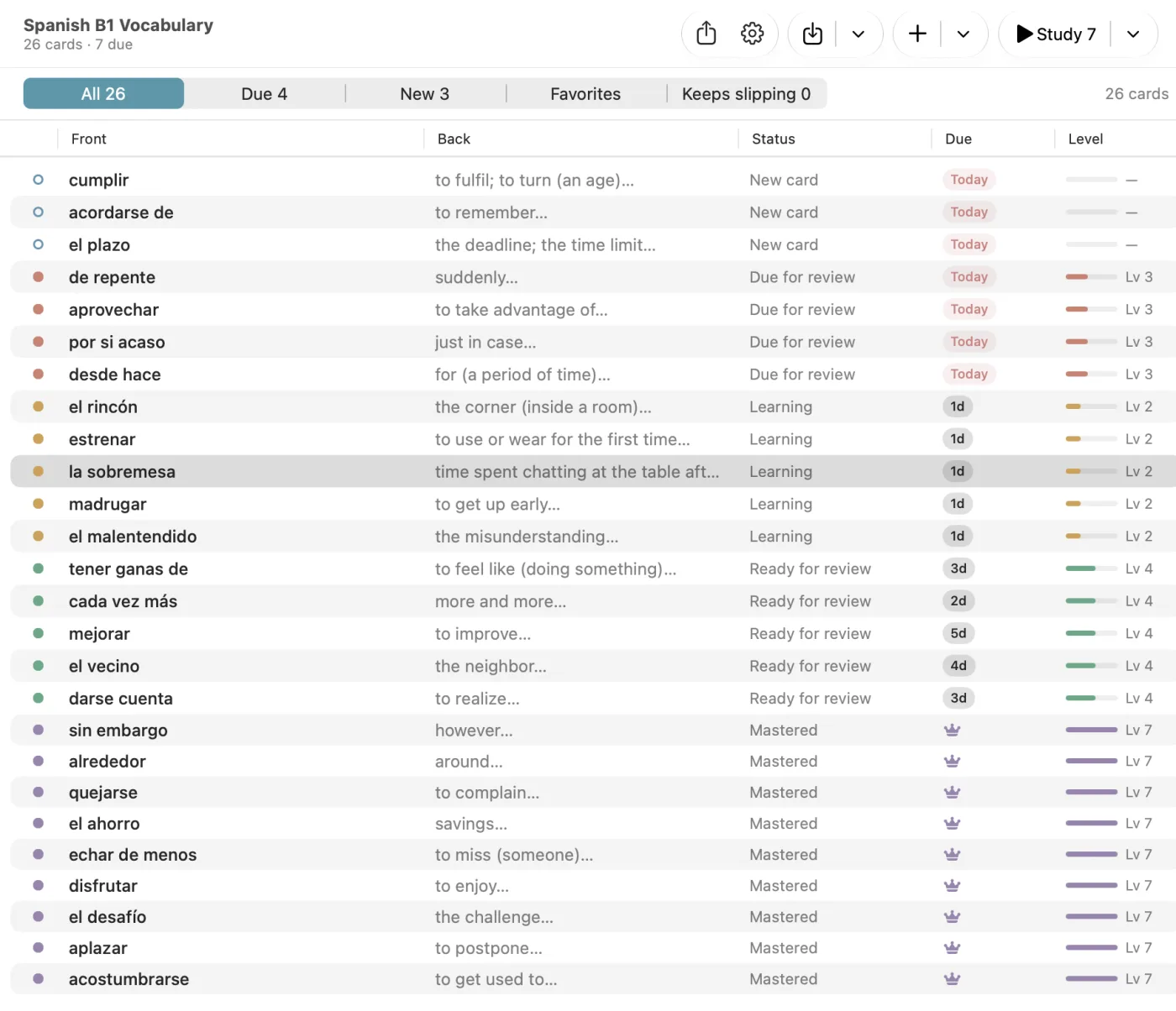
A deck as a table, with new, due, learning and mastered cards. The Keeps slipping filter is a quick way to find cards that need rewording.
This is where the Mac pays off for cleanup jobs: deleting duplicates after an import, splitting an overloaded answer into two cards, or adding example sentences to a shared vocabulary deck before you send it to a class.
Prepare on the Mac, study on the iPhone
The workflow we had in mind looks like this:
- After a lecture or a reading session, sit at the Mac. Generate or type cards from your notes, then fix them in the deck table.
- During the day, open Memor More on your iPhone. The new cards are already there, and your reviews go into the same FSRS schedule.
- Once a week or so, go back to the Mac, check the Keeps slipping filter and rewrite the cards that aren't sticking.
Everything syncs through your own iCloud account, not our servers. Sign in with the same Apple Account and keep iCloud on for Memor More on both devices. Sync is not instant, so give a new deck a moment before you reach for your phone.
You can study on the Mac too, and it works well at a desk. Rate cards with the 1–4 keys and leave a session with Esc. Classic review, Quiz, typed answers and Speed Round are all in the Study menu, and Practice and Statistics are in the sidebar.
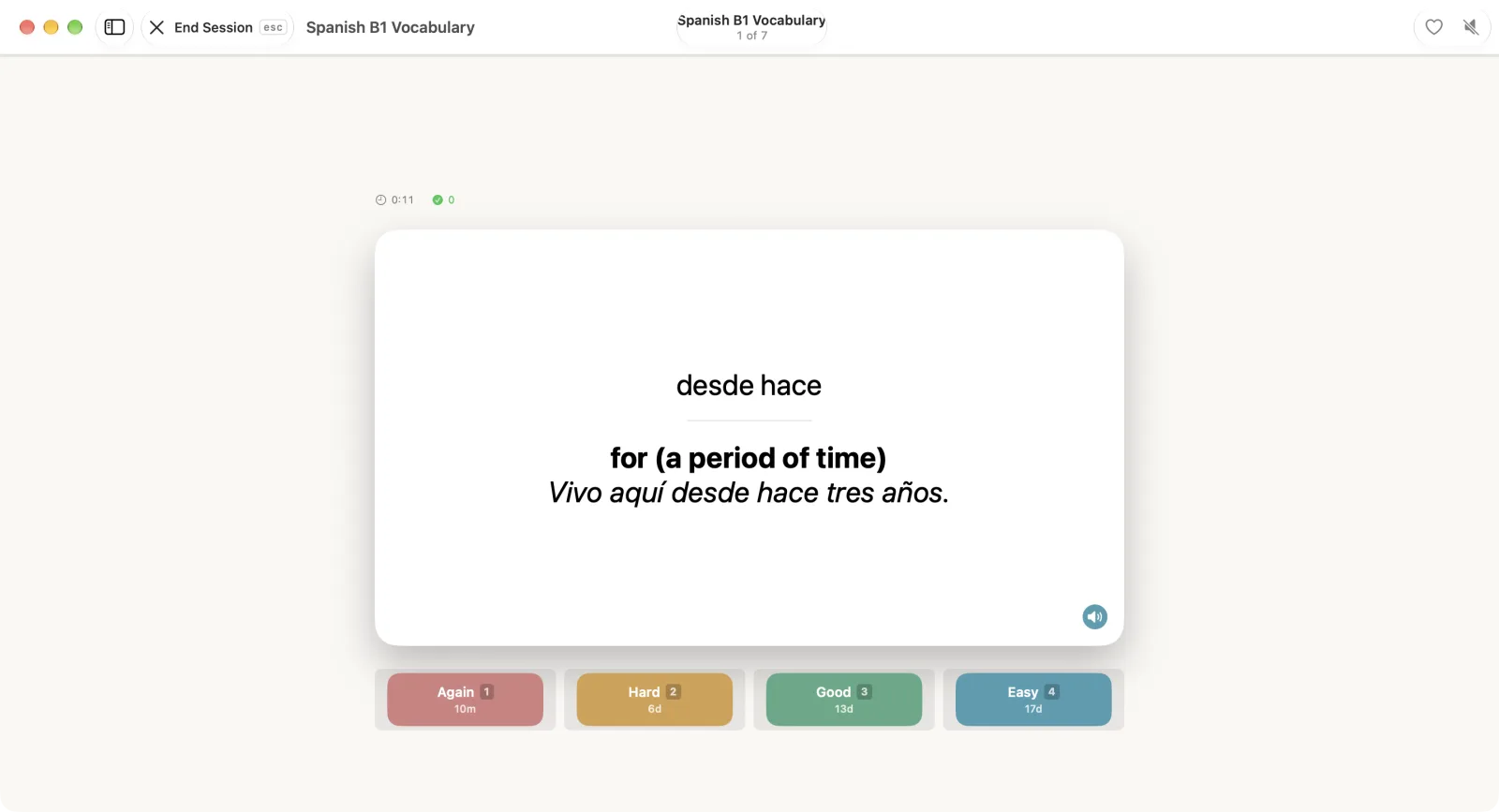
A Mac study session. Each rating button shows its key and the next interval.
What to know before you install
- One purchase across devices. The Mac app is part of the same App Store listing, so a Premium subscription on your Apple Account also unlocks Premium on the Mac. See pricing for what Free and Premium include.
- Same features, same updates. New features ship for iPhone, iPad and Mac together, rather than reaching the Mac later.
- One exception. Scanning a paper page with the camera is only on iPhone and iPad. On the Mac, add a screenshot, a photo or a PDF page to an image occlusion card instead.
- On-device extras need Apple Intelligence. Features such as suggested cloze blanks only appear on Macs with Apple Intelligence turned on.
Try it
Download Memor More for Mac, or open the App Store on your Mac and search for Memor More. If you want something to test the batch workflow on, copy a free Spanish B1 vocabulary deck from the public deck library, add five cards of your own on the Mac, and review them on your iPhone the next morning.
Related guides
- Cloze and image occlusion flashcards: the card types that benefit most from a mouse and keyboard
- How to turn notes into flashcards: a worked example of generating and reviewing a deck
- Flashcard practice exercises: Quiz, typing and Practice Sets beyond scheduled review
- FSRS vs SM-2: how Memor More decides when each card comes back
- Spaced repetition vocabulary schedule: a daily routine to pair with the Mac-and-iPhone workflow
Written by
Founder & developer of Memor More. I build iOS and Mac apps and write about the science of memory and learning. @Jerelii on X